
Add or Edit Work Types for Staff Shifts
This article steps through assigning Work Types to a Staff Shift. Work Types categorise the work performed in a Shift so that the Shift's data is exported correctly to your organisation's payroll system, regardless of which payroll platform you use.
Work Types must first be configured in System Preferences before they can be assigned. For that setup, see Configuring Work Types for Shifts and Payroll. Once assigned to a Shift, a Work Type affects how that Shift's data is sent to Employment Hero via API, and is also included in the Detailed Timesheet Batch export.
Privileges: the privileges required to manage Activities, that is, Team Leader at the relevant Site and Service level, or the global 'Team Leader for ALL Services' privilege.
Audience: Team Leaders, Rostering Coordinators.
Summary
The following list summarises the content within this article. Click on the links below to take you to the relevant sections:
- Who can assign Work Types and where
- Work Type Categories
- How many Work Types can a Shift have?
- How to add Work Types to a Shift
- How to edit or remove Work Types on a Shift
- How Work Types flow through Rostered, Finalised and replicated Shifts
- Where assigned Work Types are displayed
Who can assign Work Types and where
Adding, editing, or removing Work Types on a Shift requires the privileges needed to manage Activities. In practice that means either Team Leader at the relevant Site and Service level, or the global 'Team Leader for ALL Services' privilege. A Staff Member without the required privilege will not see the option to add or edit Work Types on a Shift.
The Add/Edit Work Types option in the Staff section of an Activity appears only after your organisation has at least one active Work Type configured in System Preferences. If none are set up, the option does not appear in the Actions menu.
Work Type assignment happens in the Staff section of the Activity record, in the edit view, via the Actions menu on each Shift row.
You cannot assign or edit Work Types from the Roster view, though the Roster does show you which Work Types are assigned.
Work Type Categories
A Work Type's Category determines how it behaves on a Shift and how many of that type you can assign. Categories are configured in System Preferences, but it helps to understand them before assigning.

A Shift can include Work Types from different categories, for example, one Hours-based, plus one or more Allowances/Kilometres Work Types.
The one exception is Allowance Work Types configured to suppress the base hours, e.g. Sleepover Allowance. This cannot be combined with an Hours-based Work Type, as reiterated below.
Allowance-only Shifts (suppressed base hours)
Some Allowance Work Types are configured with Suppress base hours entry = Yes, for Shifts that are paid as an allowance only, such as on-call or sleepover.
When you assign one of these, the Shift's base hours entry is suppressed on export. No base row is produced for the Shift in the Detailed Timesheet Batch, and no base entry is sent to the Employment Hero API. The Allowance Work Type still creates its own entry (0 hours, units = 1). You will see a warning before saving, so you know the base hours will not appear in the payroll export.
A few rules apply:
- An Allowance Work Type with Suppress base hours entry = Yes cannot be assigned to a Shift that already has an Hours-based Work Type, and vice versa. SupportAbility will display an inline message at the time of assignment explaining why.
- Any other Allowance or Kilometres Work Types on the same Shift still produce their own entries as normal.
- On the Timesheet Edit screen, a Shift whose hours have been suppressed is still shown so you can check the configuration, but it is clearly marked as not exporting and is excluded from the on-screen totals. The on-screen totals always match what will be exported.
Kilometres Work Types that apply automatically
If a Kilometres Work Type is configured with Auto-apply when private kilometres entered = Yes, it is added to the Shift automatically as soon as Private kilometres are entered, whether at the Rostered or Recorded stage. If more than one Kilometres Work Type has Auto-apply set to Yes, all of them are added.

You can manually remove an auto-applied Kilometres Work Type if it does not belong on a particular Shift.
A Kilometres Work Type cannot be added to a Shift that has no kilometres recorded against it, whether Rostered or Recorded. If no kilometres are present, the Kilometres Work Type is unavailable. Once kilometres are entered, it can be added as normal.
Work Types and the Not Paid flag
Work Types and the Not Paid flag do not mix:
- You cannot add or edit Work Types on a Shift marked as Not Paid. The option will indicate this, so you know to remove Not Paid first if needed.
- If a Shift already has Work Types assigned and you then mark it Not Paid, you will be warned that the assigned Work Types will be removed when you save.
- Kilometres auto-apply does not fire on a Shift marked as Not Paid.
The allowance-only sleepover and on-call workflow does not use Not Paid. Suppression of the base hours is handled by the Suppress base hours entry setting on the Allowance Work Type, not by marking the Shift Not Paid. Keep Not Paid for Shifts that genuinely should be excluded from payroll altogether, with no hours and no allowance.
A note on Active Night Shift Hours
The Active Night Shift Hours field is not compatible with the Work Types payroll export path and should be disregarded when Work Types are in use. It records duration only, with no start and end time, which is not sufficient for payroll systems, including Employment Hero.
When Work Types are in use, and a sleepover is disturbed, capture the disturbance by splitting the Shift: create a separate Shift entry for the disturbance period with accurate start and end times, and assign the appropriate Work Type, such as Active Overnight. This ensures the correct data is available for the payroll export.
How many Work Types can a Shift have?
The Category determines how many Work Types of that type can be assigned to a single Shift:
| Category | Multiple per Shift? | Reason |
|---|---|---|
| Hours-based | No, one per Shift | The Work Type categorises the base entry; a second would conflict |
| Allowance | Yes | Each generates its own additional entry |
| Kilometres | Yes | Each generates its own additional entry |
A single Shift can have Work Types from different Categories at the same time, for example, one Hours-based plus one or more Allowances plus one or more Kilometres. The one-per-Shift restriction only applies within the Hours-based Category.
There is one exception to mixing Categories: an Allowance Work Type with Suppress base hours entry = Yes cannot be combined with an Hours-based Work Type on the same Shift.
If you attempt to add a second Hours-based Work Type, or a combination that is not permitted, SupportAbility will display a validation message explaining why.
Work Type selection is always optional. A Shift can have no Work Types.
How to add Work Types to a Shift
- Open the Activity and go to the Staff section in edit view.
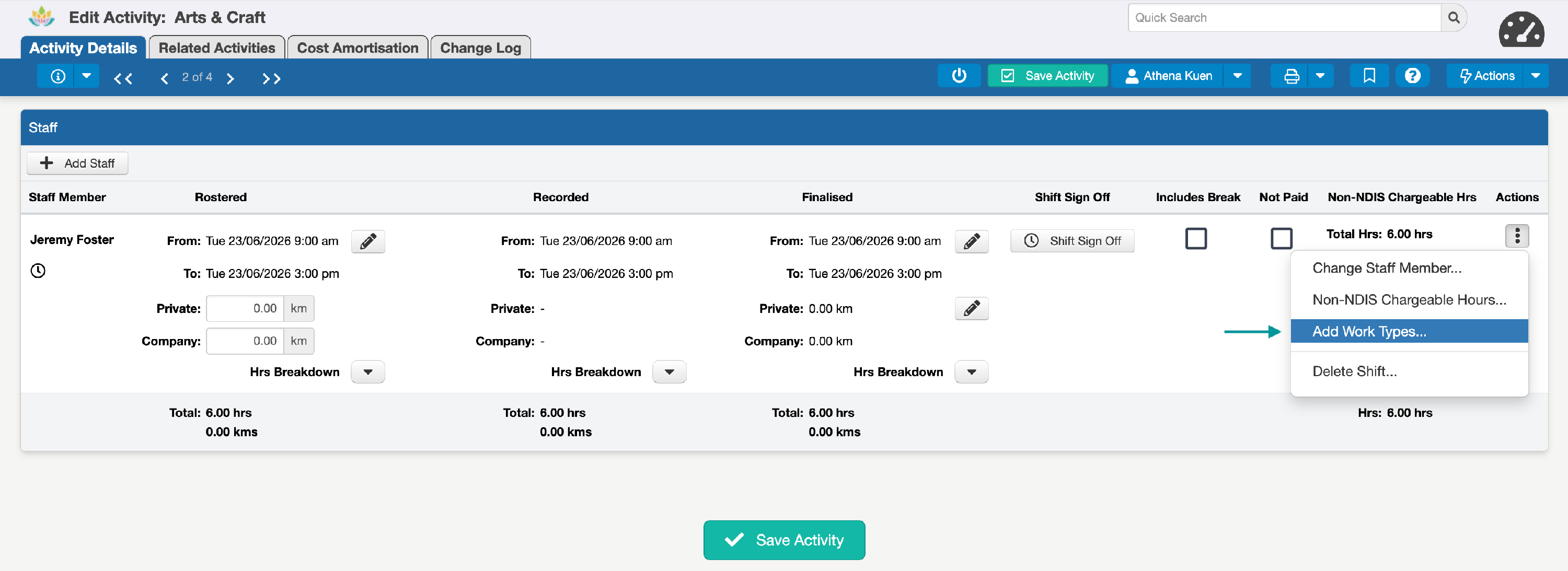
- On the relevant Staff Shift, open the Actions menu on that Shift row. Work Type assignment sits alongside the other Shift-level actions, such as Delete Shift and Non-NDIS Chargeable Hours.
- Select 'Add Work Types'. This opens the selection interface for that Shift:
- Choose the Work Types to apply. Only active Work Types appear, and each is shown by its Name. You can add and remove each Work Type independently:
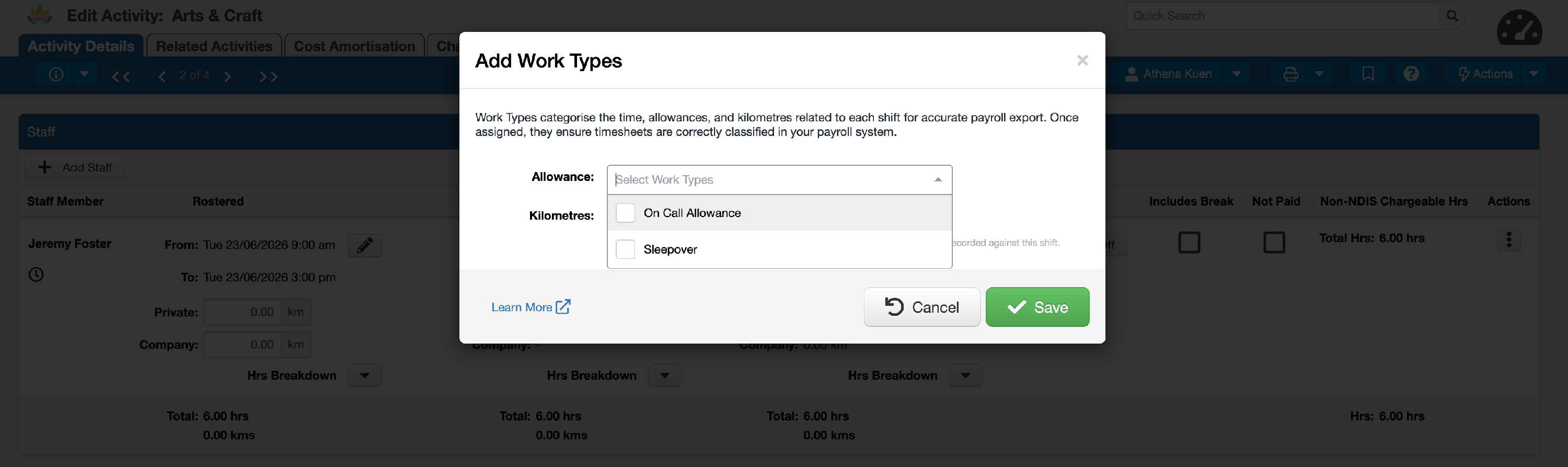
- Click 'Save'.
Once saved, the Shift row shows a small indicator so you can see at a glance that Work Types are assigned, without opening the Actions menu.
How to edit or remove Work Types on a Shift
- Open the Activity, go to the Staff section, and find the Shift.
- Open the Actions menu on that Shift row and select 'Edit Work Types':
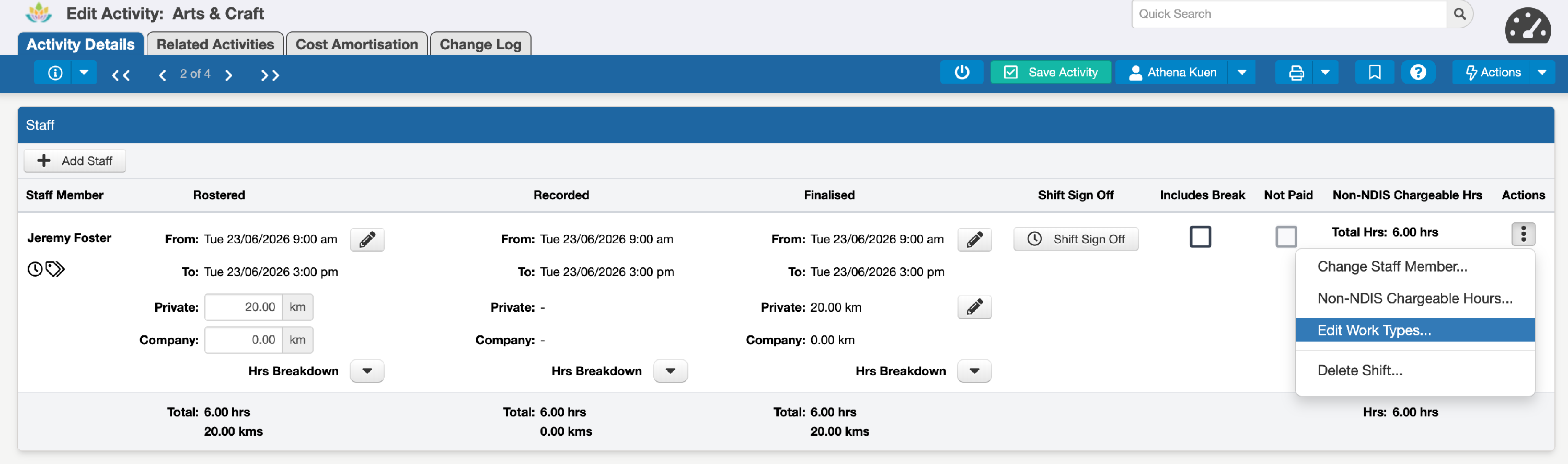
- Add or remove Work Types as needed, then click 'Save'.
Work Types remain editable on a Shift even after Private kilometres have been entered, or the Shift has been Signed Off, so you can correct an assignment if something was missed.
How Work Types flow through Rostered, Finalised and replicated Shifts
- A Work Type assigned on a Rostered Shift carries through to the Finalised Shift. Rostered, Recorded and Finalised are always the same for Work Types, so there is nothing extra to configure.
- Work Types follow your existing Replication Management Settings. If you assign or remove a Work Type on a Shift in a replicated Activity set, that change replicates across the set when the relevant setting is active. This is useful for recurring Shifts that always carry the same Work Type, for example, a regular Thursday overnight Shift that always has a Sleepover Allowance.
Where assigned Work Types are displayed
Once Work Types are assigned, they are surfaced in several places so you and your payroll team can confirm the configuration at a glance:
- On the Shift row in the Activity. The Shift displays a small indicator showing that Work Types are assigned, so you can see this without opening the Actions menu. The Add/Edit Work Types option in the Actions menu shows the current selection.
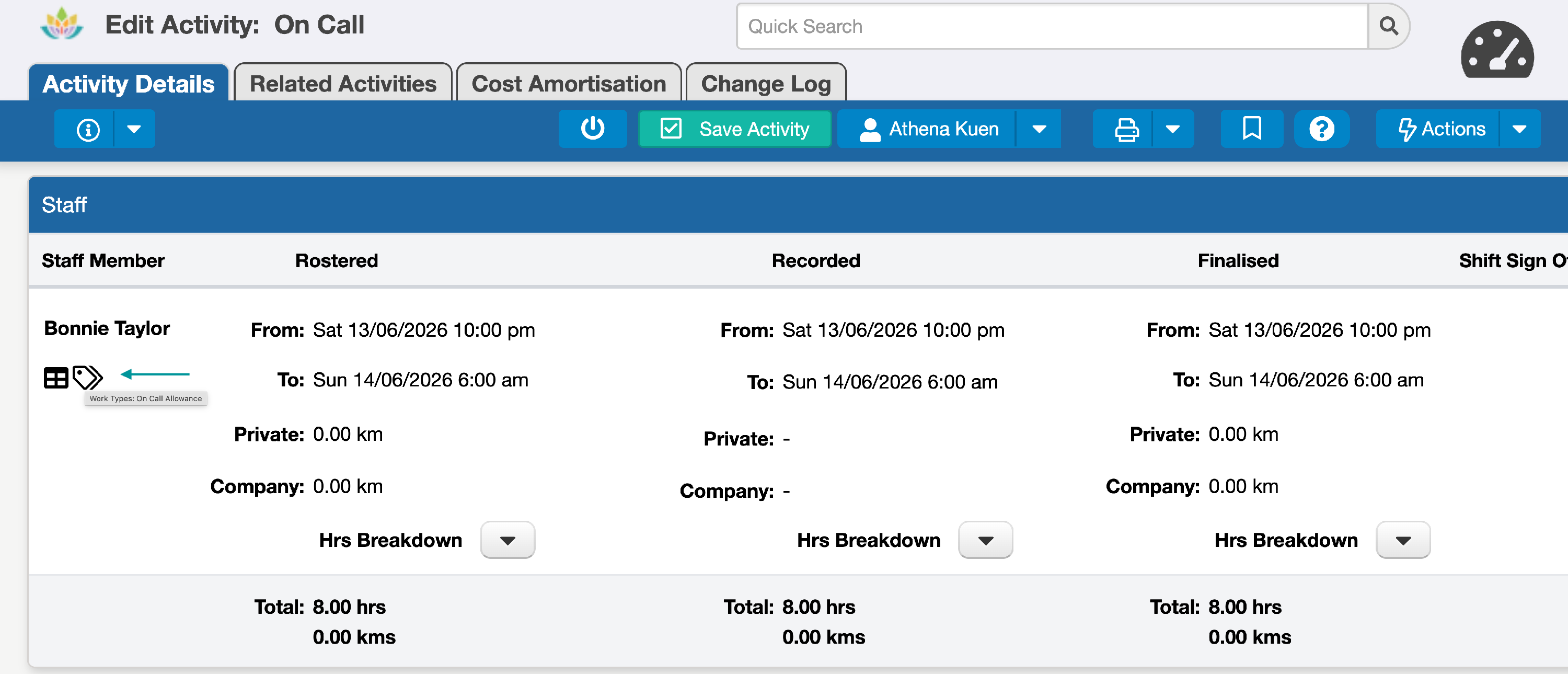
- In the Roster. Shifts with Work Types show the same visual indicator as in the Activity edit view, and hovering over a Shift shows the assigned Work Type name or names.
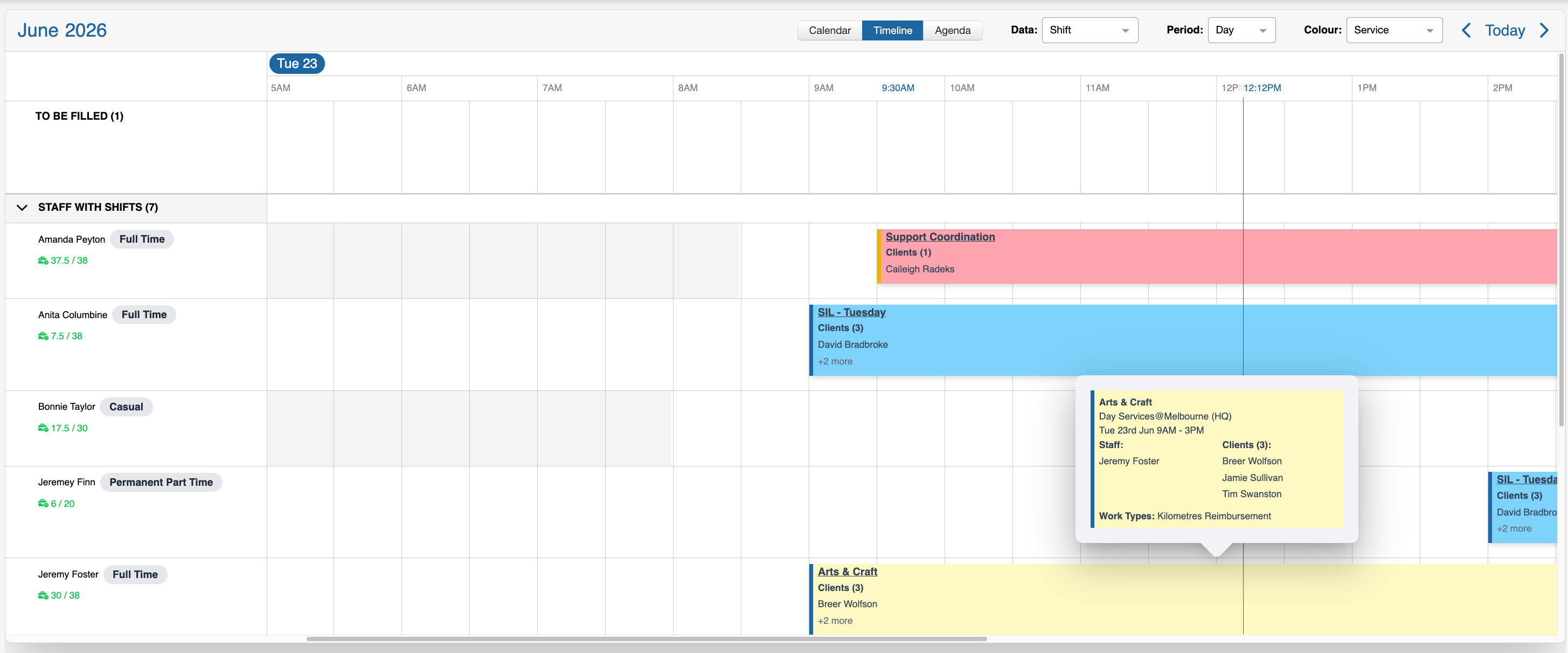
This lets you verify the correct Work Types are applied, without opening each Activity. Roster visibility is read-only, so to add, edit, or remove a Work Type, you go to the Activity edit view. - In the Staff Hours Report. Work Types are surfaced in this report (Reports » Staff » Rostering) so HR, payroll, and Team Leaders can review them across a date range:
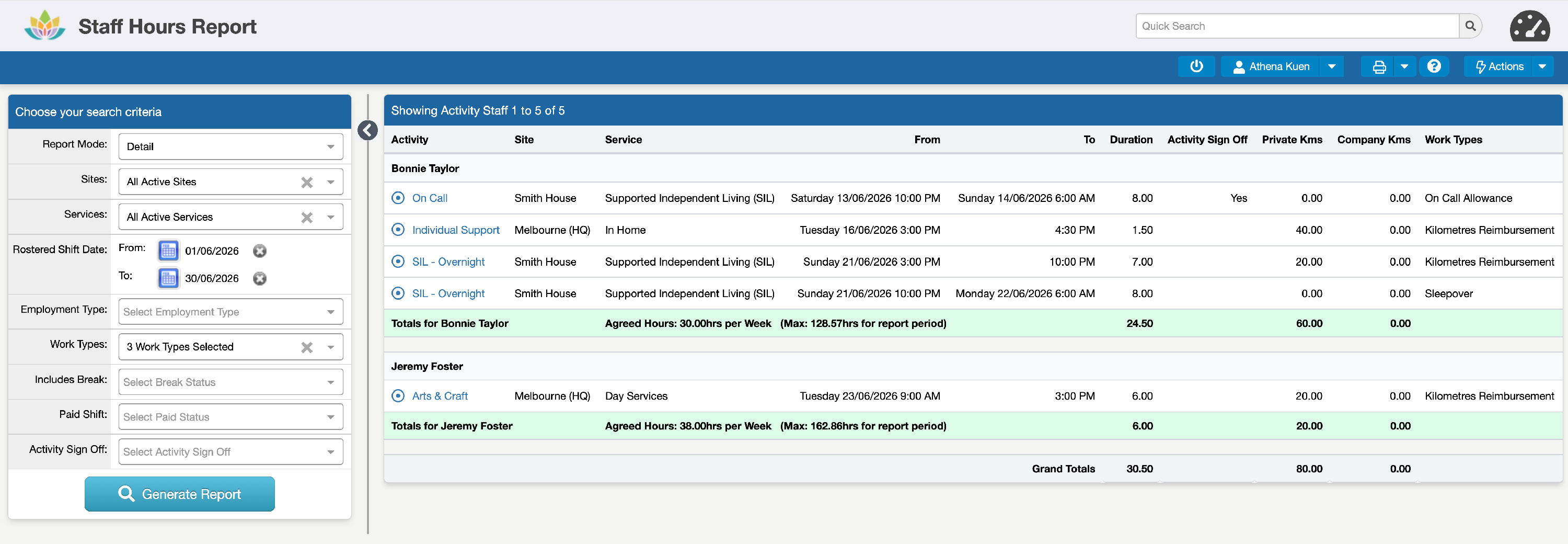
- A multi-select Work Types filter in the search criteria (after Paid Shift, before Sites), including a 'No assigned Work Types' option. Selecting one or more Work Types returns only Shifts with those Work Types assigned; selecting 'No assigned Work Types' returns only Shifts without any.
- A Work Types column in the Detailed on-screen results, after Company Kms, listing the assigned Work Type name or names for each Shift, comma-separated where there is more than one.
- A Work Types column at the end of the CSV export.
- Summary mode does not show a Work Types column, since a Staff Member may have Shifts with different Work Types across the period, but the Work Types filter still applies to Summary results
- On the Timesheet Edit screen. Assigned Work Types are reflected in the timesheet entries generated for the Shift. Where an Allowance Work Type has suppressed the base hours, the suppressed row is still shown but clearly marked as not exporting, and is excluded from the on-screen totals. The on-screen totals always match what will be exported.

