
How to Send Time Sheets to Employment Hero via API
This article provides step-by-step guidance on configuring and using the Employment Hero API integration in SupportAbility to send Time Sheet data directly to Employment Hero for payroll processing.
Rather than exporting a .csv file and manually uploading it to Employment Hero, this integration allows approved Time Sheet Batches to be sent to Employment Hero via their API with a single action, automatically creating Timesheet Entries in Employment Hero.
Audience: System Administrators, Finance Team, Team Leaders
Privileges:
- System Preferences - for configuration
- Finance Admin - to generate and send Timesheets:
- View Financial Information privilege, AND
- Team Leader for All Services privilege, OR the Human Resources for ALL Staff privilege
Summary
The following list summarises the content within this article:
- Overview
- Prerequisites
- Step 1: System configuration (Administrator)
- Step 2: User API Token configuration
- Step 3: Sending Time Sheets to Employment Hero
- Step 4: Reviewing the results
- Deleting a Time Sheet Batch after sending
- Frequently Asked Questions
Overview
The Employment Hero API integration enables SupportAbility to send approved Time Sheet Batch data directly to Employment Hero's payroll system (powered by KeyPay). This removes the need for manual .csv exports and imports, streamlining the payroll workflow.
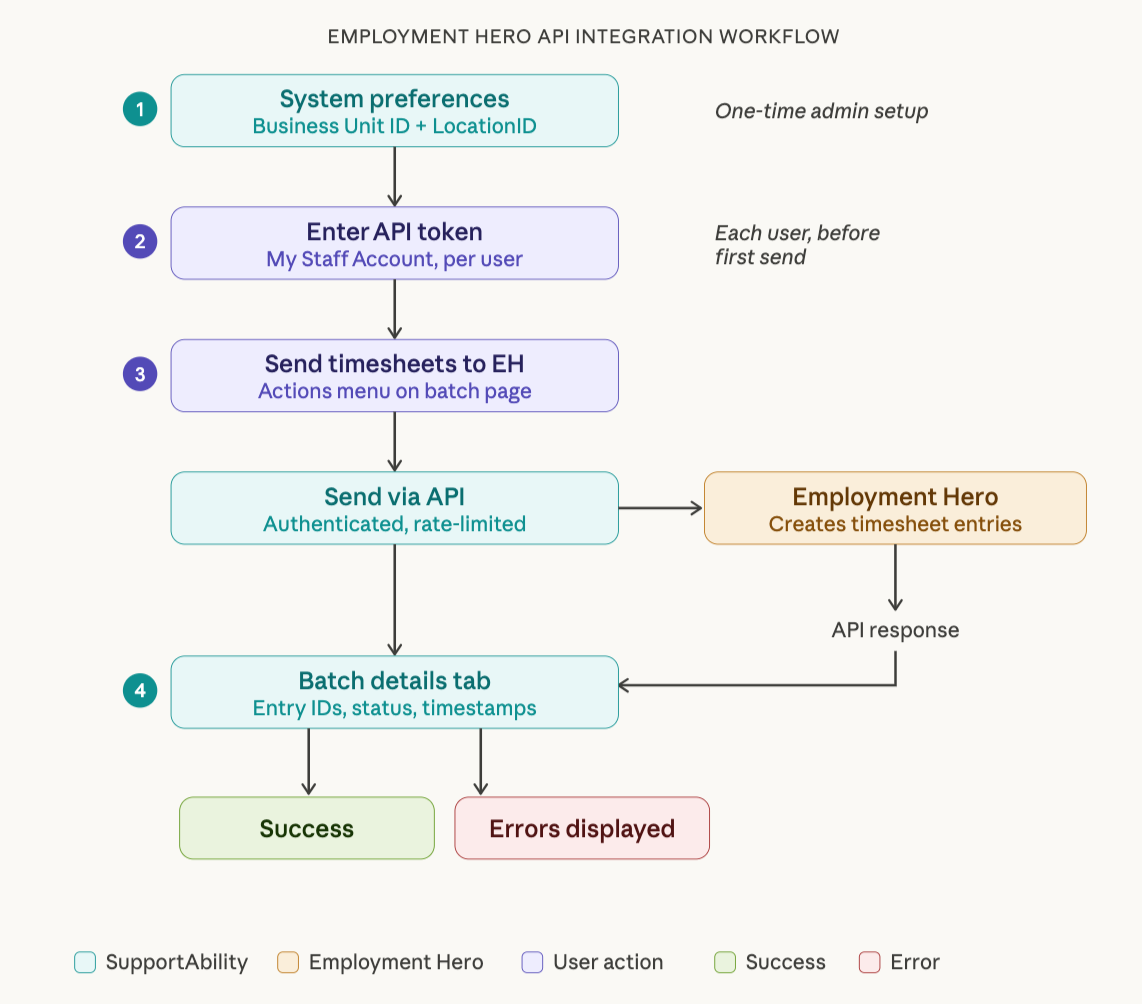
The integration works as follows:
- A System Administrator configures the Employment Hero Business Unit ID and (optionally) the LocationID mapping in System Preferences - once off.
- Each user who needs to send Time Sheets generates an API Key in their Employment Hero account and enters it in My Staff Account in SupportAbility.
- When a Time Sheet Batch is ready, the user selects 'Send Timesheets to Employment Hero' from the Actions menu on the Edit Time Sheet Batch page.
- SupportAbility sends the data to Employment Hero via the API and displays the results in a new 'Time Sheet Batch Details' tab.
Prerequisites
Before using the Employment Hero API integration, the following requirements must be met.
Employment Hero subscription requirements
Your organisation must have an active Employment Hero account with API access. The Employment Hero Payroll product (powered by KeyPay) must be enabled for your organisation.
You will need the following from your Employment Hero account:
- Business Unit ID – this is your organisation's identifier in Employment Hero and is required for all API calls. Your Employment Hero administrator can locate this in the Employment Hero account settings.
- API Key – each SupportAbility user who will send Time Sheets needs to generate a personal API Key from their Employment Hero account.
Staff record requirements
Each Staff member whose shifts are included in a Time Sheet Batch must have a Payroll System Identifier configured in the Human Resources tab of their Staff record, including your own for those who will be sending Timesheets to Employment Hero.
This identifier is used to match the Staff member to their corresponding employee record in Employment Hero:
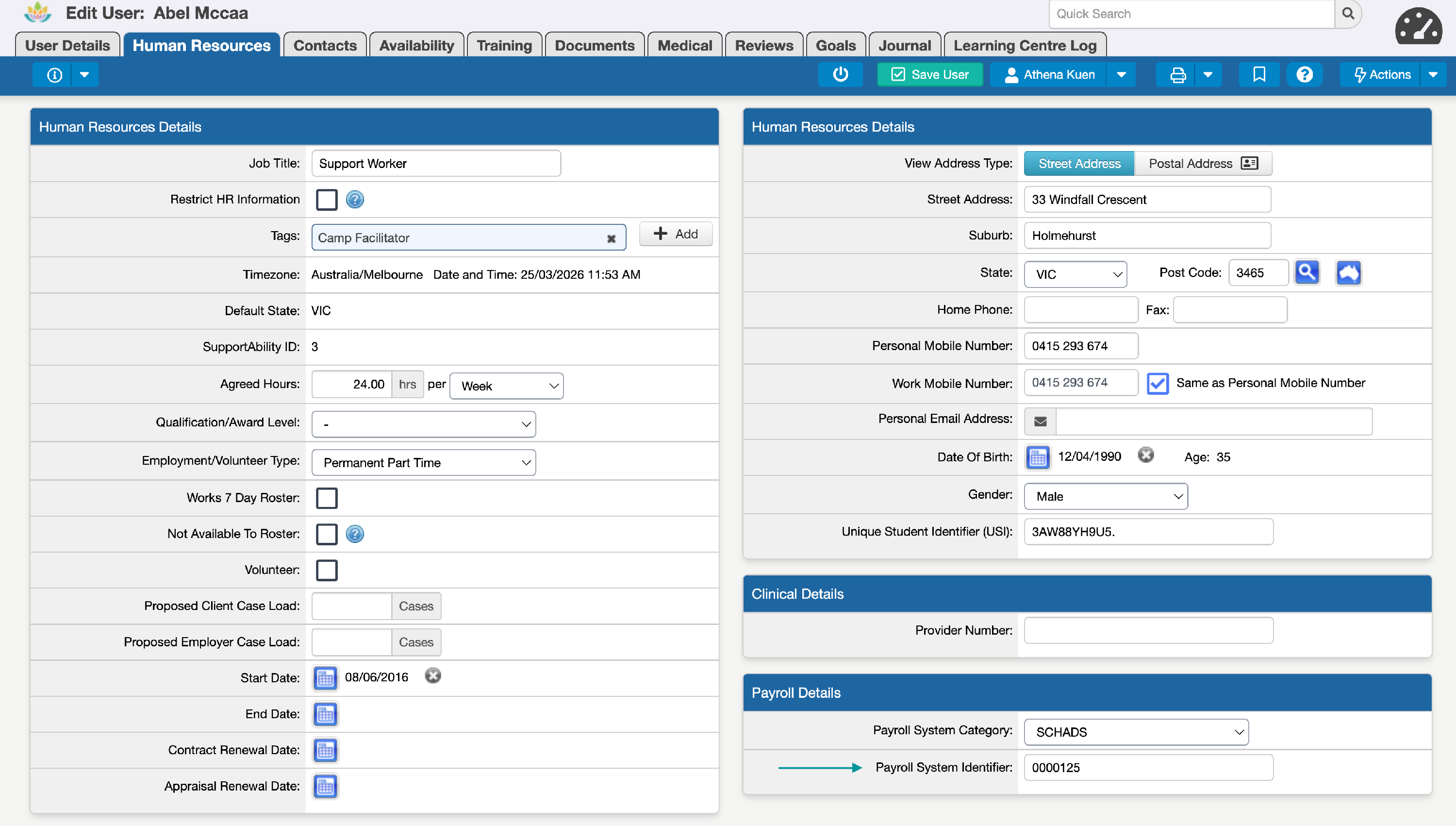
SupportAbility checks the Payroll System Identifier for every Staff Member with shifts in the batch before sending Timesheets to Employment Hero. If any Staff Member is missing this identifier, you will be alerted, and those Timesheets will not be sent, so it is best to populate this field for all Staff Members beforehand. Enter each Staff member's Employment Hero Employee ID in this field.
Step 1: System configuration (Administrator)
The Employment Hero integration must be configured in System Preferences before it can be used. This is a one-time setup completed by a System Administrator.
Navigate to System Preferences, then select the Settings tab. An 'API Configuration' section is available on the right-hand side above the 'Payroll Time Type Codes' section:
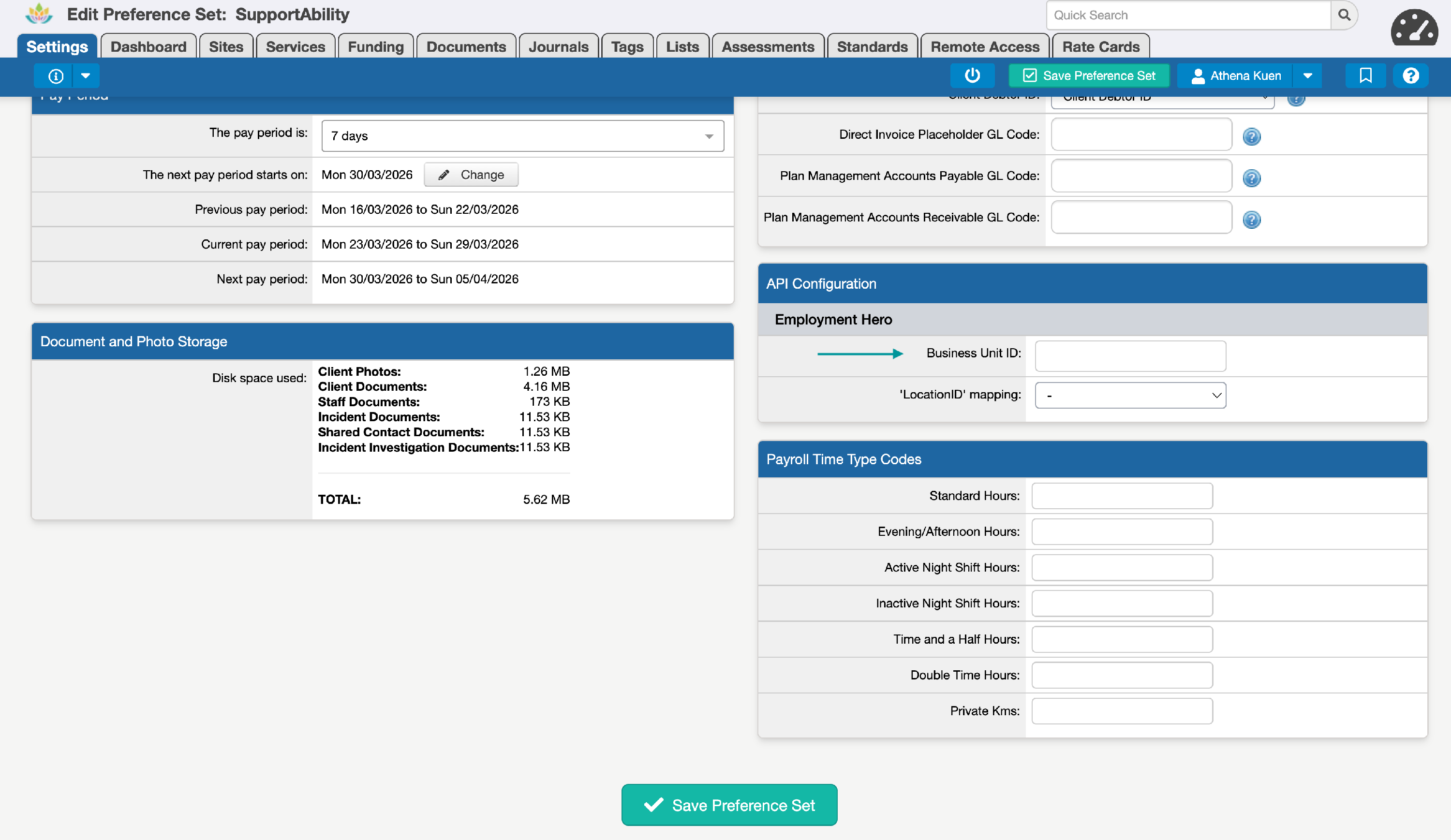
Configuring the Business Unit ID
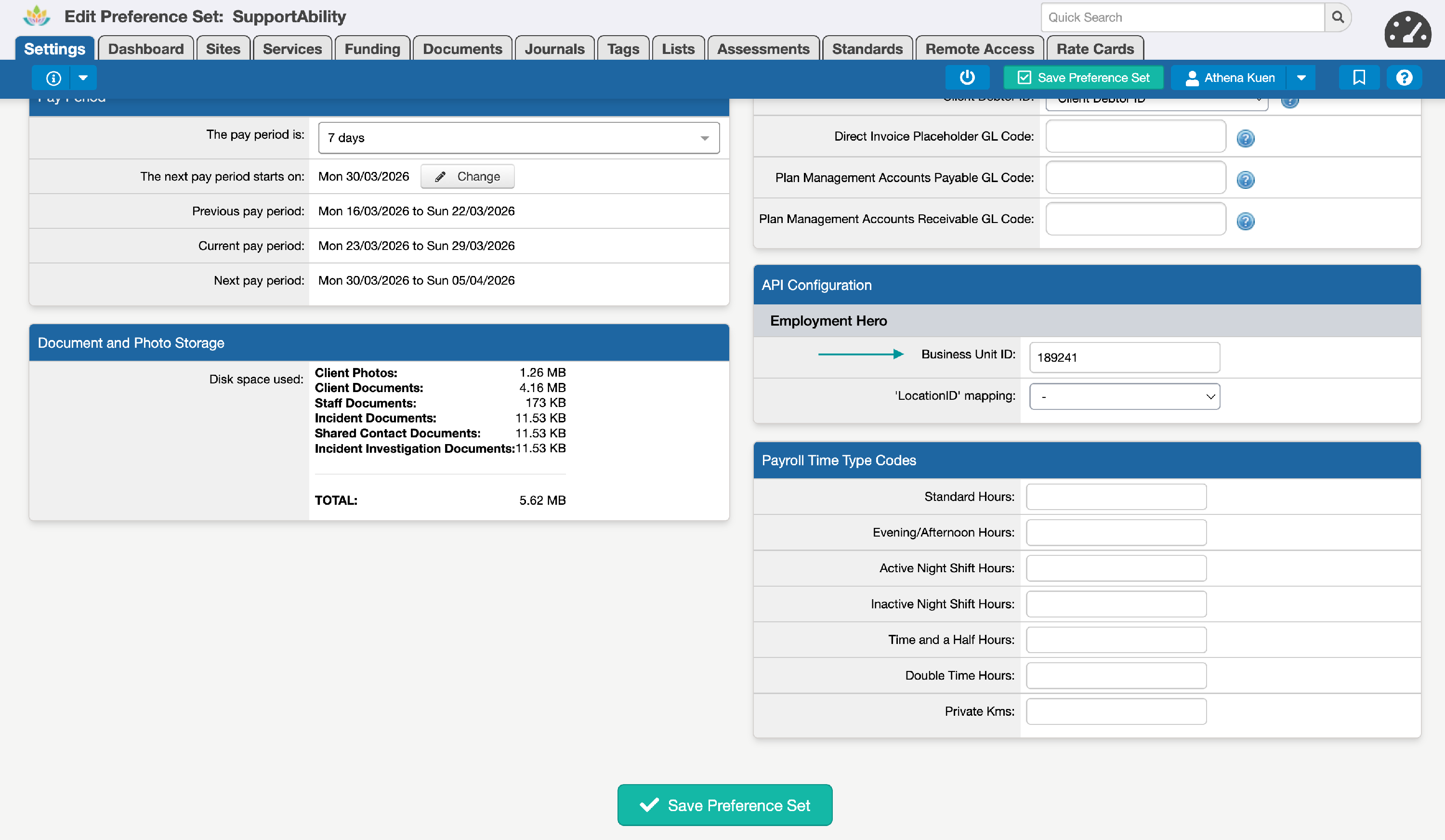
Your Business Unit ID is the numeric ID that appears in the URL when you are logged into your Employment Hero Payroll account. It is your organisation's unique identifier and is required for SupportAbility to send data to the correct Employment Hero account.
To identify your organisation's Business Unit ID, navigate to the Dashboard (Home menu) in Employment Hero and look at your browser's address bar - the number shown in the URL is your Business Unit ID. It's a plain integer, typically 5-6 digits. We recommend that you contact your Employment Hero administrator if you are unsure.
Enter your organisation's Business Unit ID from Employment Hero into the field provided below:
Configuring the LocationID mapping (optional)
Employment Hero uses Locations to attribute labour costs. If your organisation tracks costs by location in Employment Hero, you can configure SupportAbility to include the Employment Hero locationId when sending Time Sheets.
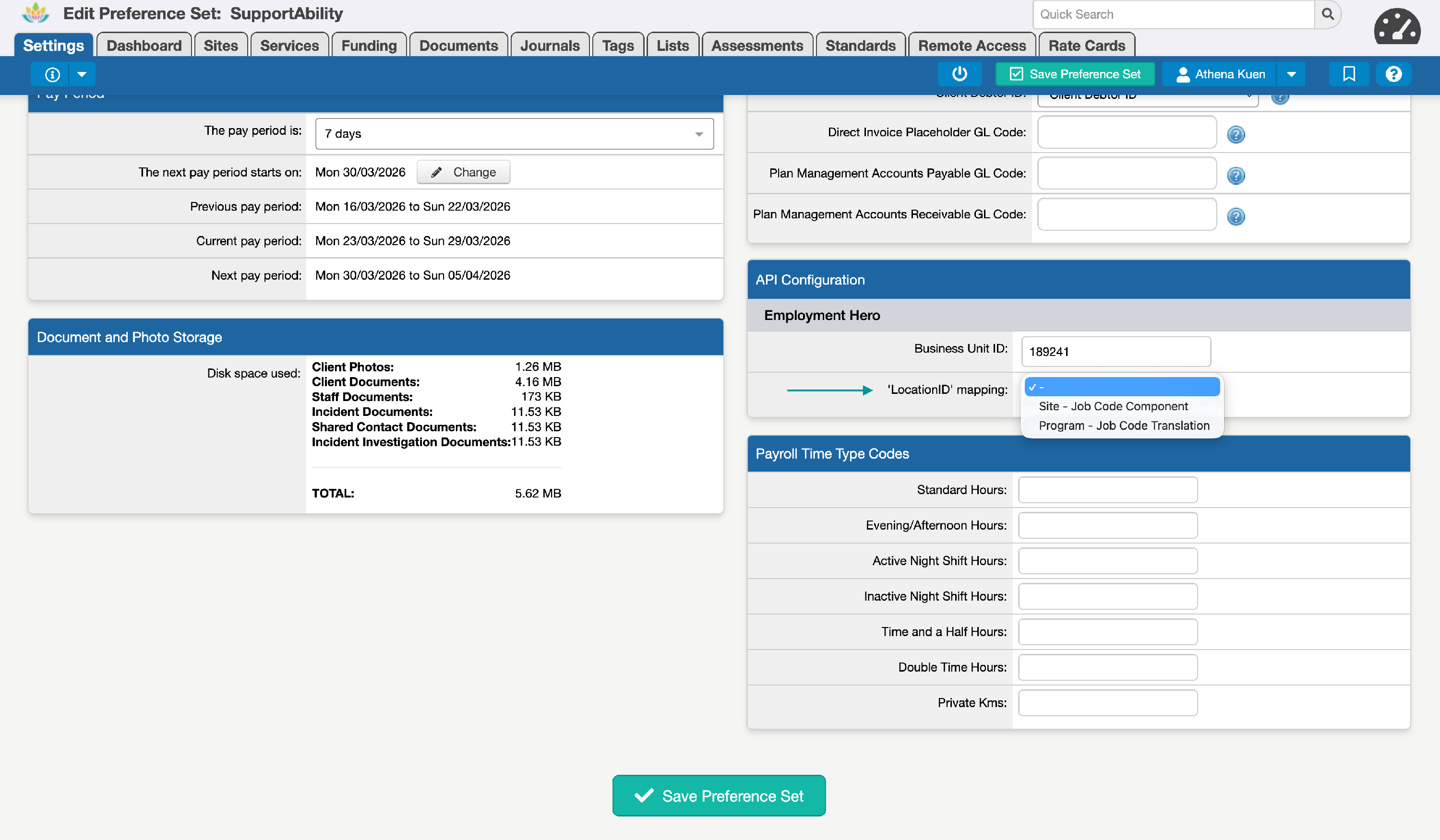
In the Payroll Integration section of System Preferences, a LocationID mapping option is available with the following choices:
| Option | Description |
|---|---|
| - | Default. No locationId is sent. Employment Hero will use the employee's default location from their profile. |
| Site - Payroll Location ID | The locationId is populated from the Payroll Location ID configured on the Activity's associated Site. |
| Program - Payroll Location ID | The locationId is populated from the Payroll Location ID configured on the Activity's assigned Program. |
When you select Site or Program as the source, enter the numeric Employment Hero Location ID into the dedicated Payroll Location ID field on the relevant Site or Program. This is a separate field from Job Codes, so you can continue using Job Codes for your finance integrations without conflict.
Site Payroll Location ID example

Program Payroll Location ID example
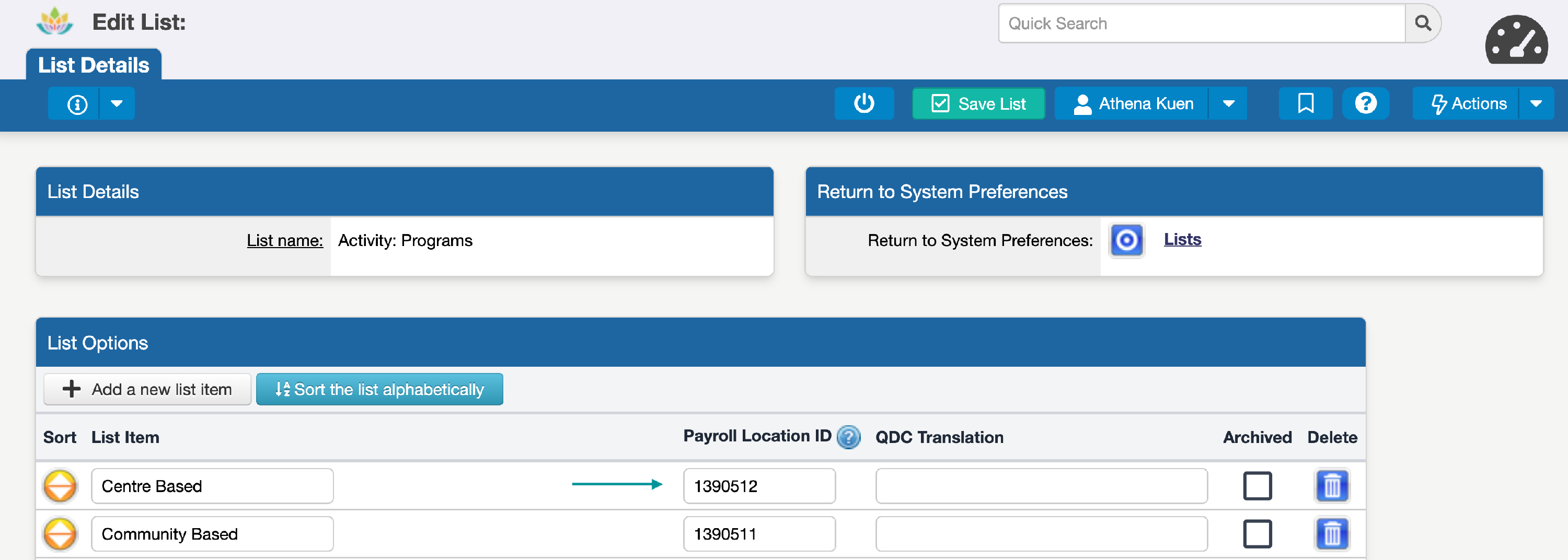
If a Site or Program does not have a Payroll Location ID configured, the locationId will not be included for those shifts.
Employment Hero will fall back to using the employee's default location for those entries, and a warning will be displayed in the Time Sheet Batch Details to alert you.
Configuring Work Types
Work Types categorise the work performed in a Shift so it is exported correctly for payroll. Once configured and assigned to a Shift, the Work Type is sent to Employment Hero for the relevant timesheet entries, where the pay conditions engine uses it to derive the correct pay conditions, penalty rates, and allowances.
Work Types are configured in the 'Work Types' section of System Preferences, where you set each Work Type's Category (Hours-based, Allowance, or Kilometres) and, for Allowance Work Types, whether it suppresses the base hours entry:

They can then be assigned to Shifts by Staff with the privileges to manage Activities:
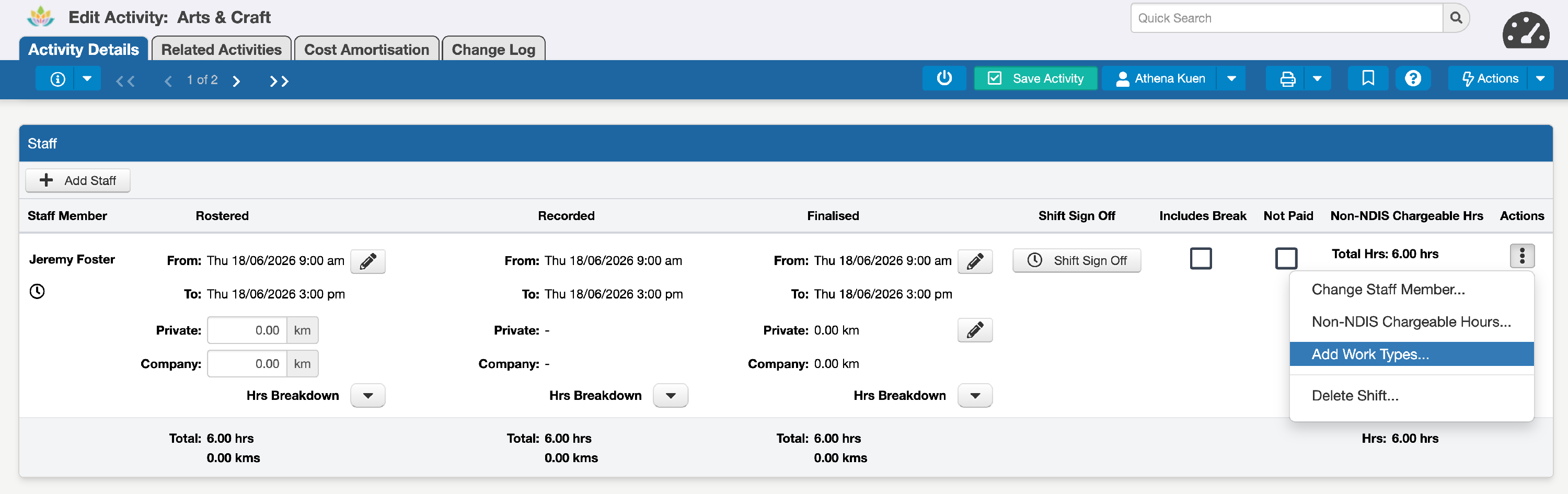
For full guidance on configuring Work Types, see the Configuring Work Types for Shifts and Payroll article linked below.
Step 2: User API Token configuration
Each user who will send Time Sheets to Employment Hero must configure their personal API Token in SupportAbility before they can send. This is a per-user setting, as Employment Hero authenticates API requests against individual user accounts.
Generating an API Key in Employment Hero
Important - the following API Key generation steps reference "Payroll classic." If you are on the newer Employment Hero Payroll interface rather than the classic one, the menu path (Account > My Account > Account Details/Security) may not match these steps exactly.
To find or generate your API Key in Employment Hero Payroll:
- Log in to your Employment Hero Payroll platform.
- Click the Account menu.
- Click My Account.
- Click Account Details (or Security on the left-hand side menu, depending on your platform version).
- Your API Key will be displayed in the API Key field. Copy this value.
Each user intending to send Time Sheets must use their own API Key. Employment Hero bases the access for a particular API Key on the access level of the user who generates it, so sharing API Keys is equivalent to sharing login credentials.
For more information, refer to Employment Hero's help article: How do I find my API key on Payroll classic.
Entering your API Token in My Staff Account
Once you have your API Key from Employment Hero:
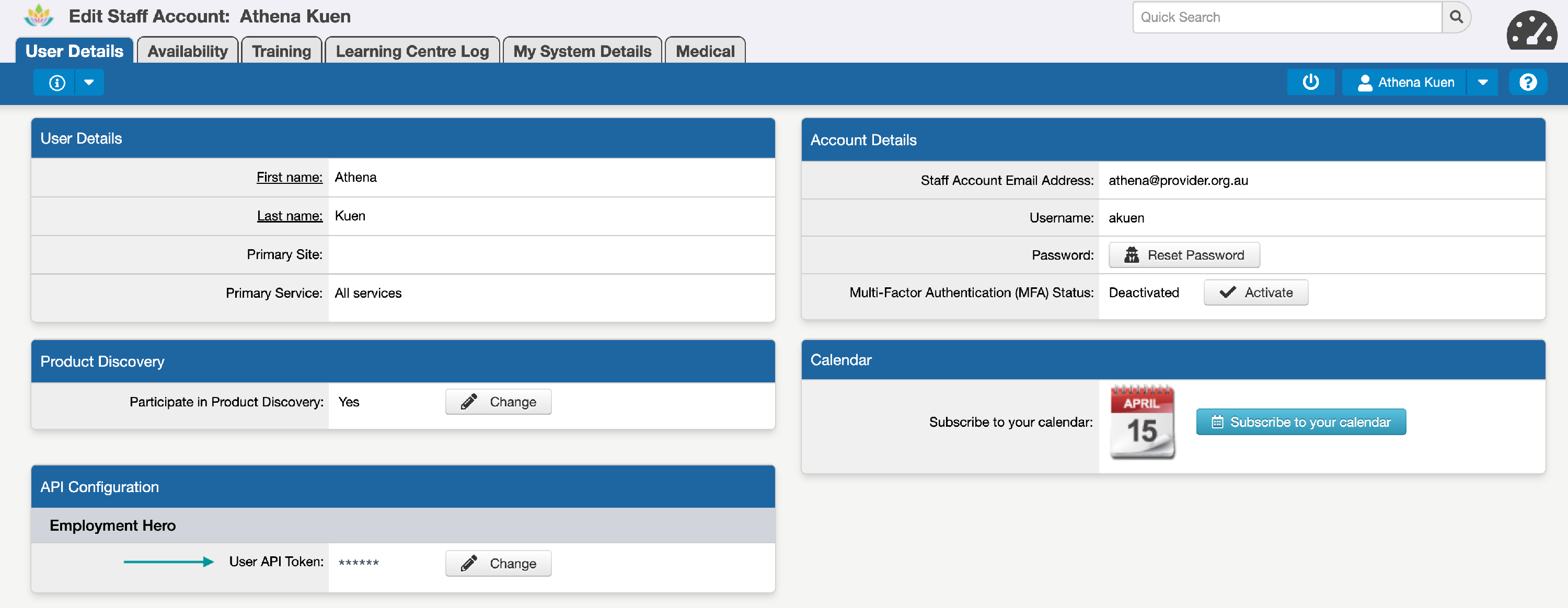
- In SupportAbility, navigate to My Staff Account.
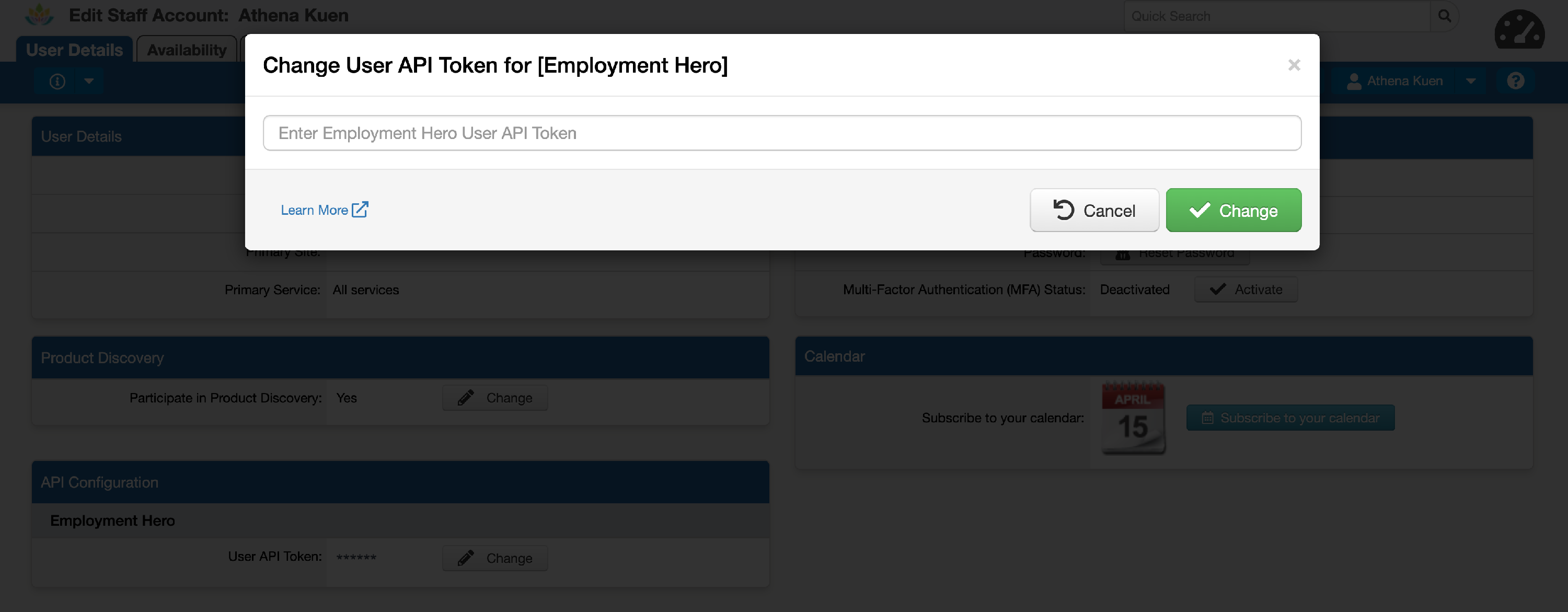
- Select the 'Change' button next to 'User API Token' in the API Configuration section to open the configuration modal:
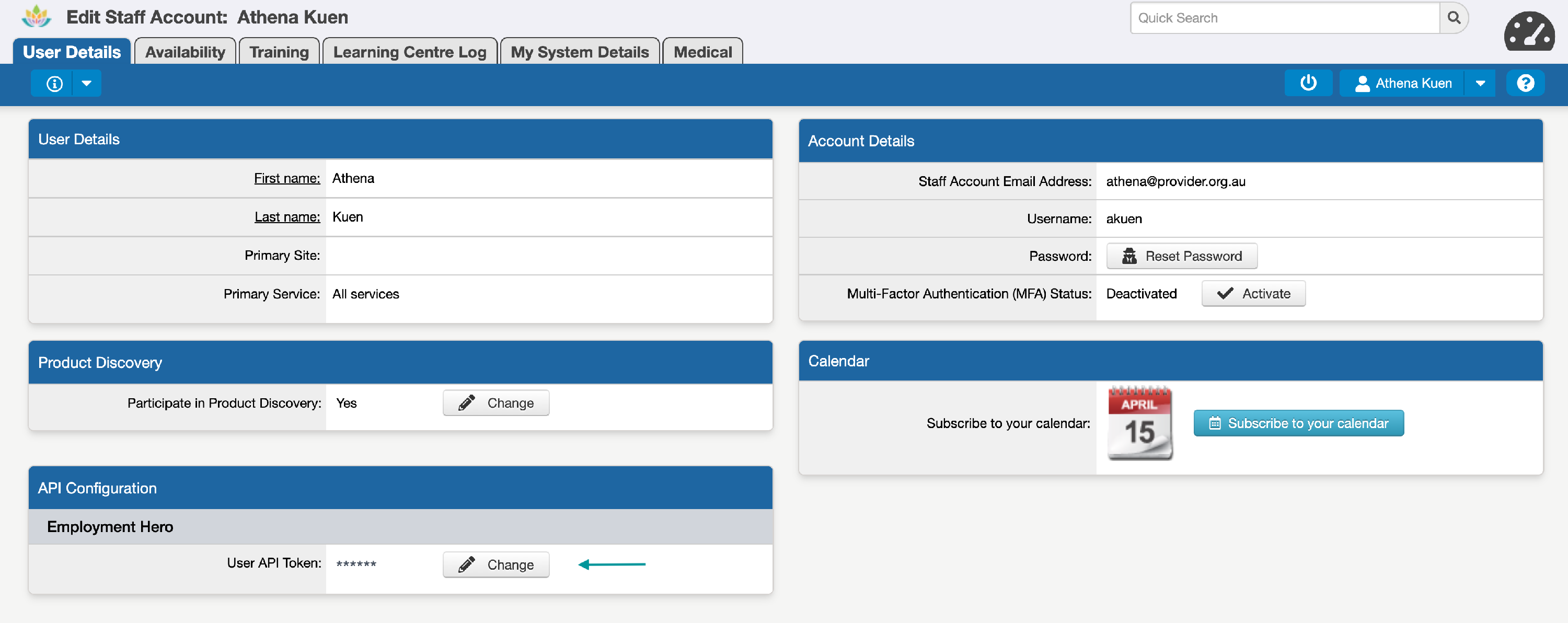
- Enter the API Key you generated in Employment Hero and select 'Change' to save this:
This only needs to be done once, unless your API Key is regenerated or expires in Employment Hero.
Your API Token is encrypted in SupportAbility for security, e.g.:
Step 3: Sending Time Sheets to Employment Hero
Once the system configuration (Step 1) and your API Token (Step 2) are in place, you can send Time Sheet Batches to Employment Hero.
- Generate a Timesheet Batch or navigate to the Edit Time Sheet Batch page for the Time Sheet Batch you'd like to send.
- Open the Actions menu at the top of the page.
- Select 'Send Time Sheet Batch to Employment Hero':
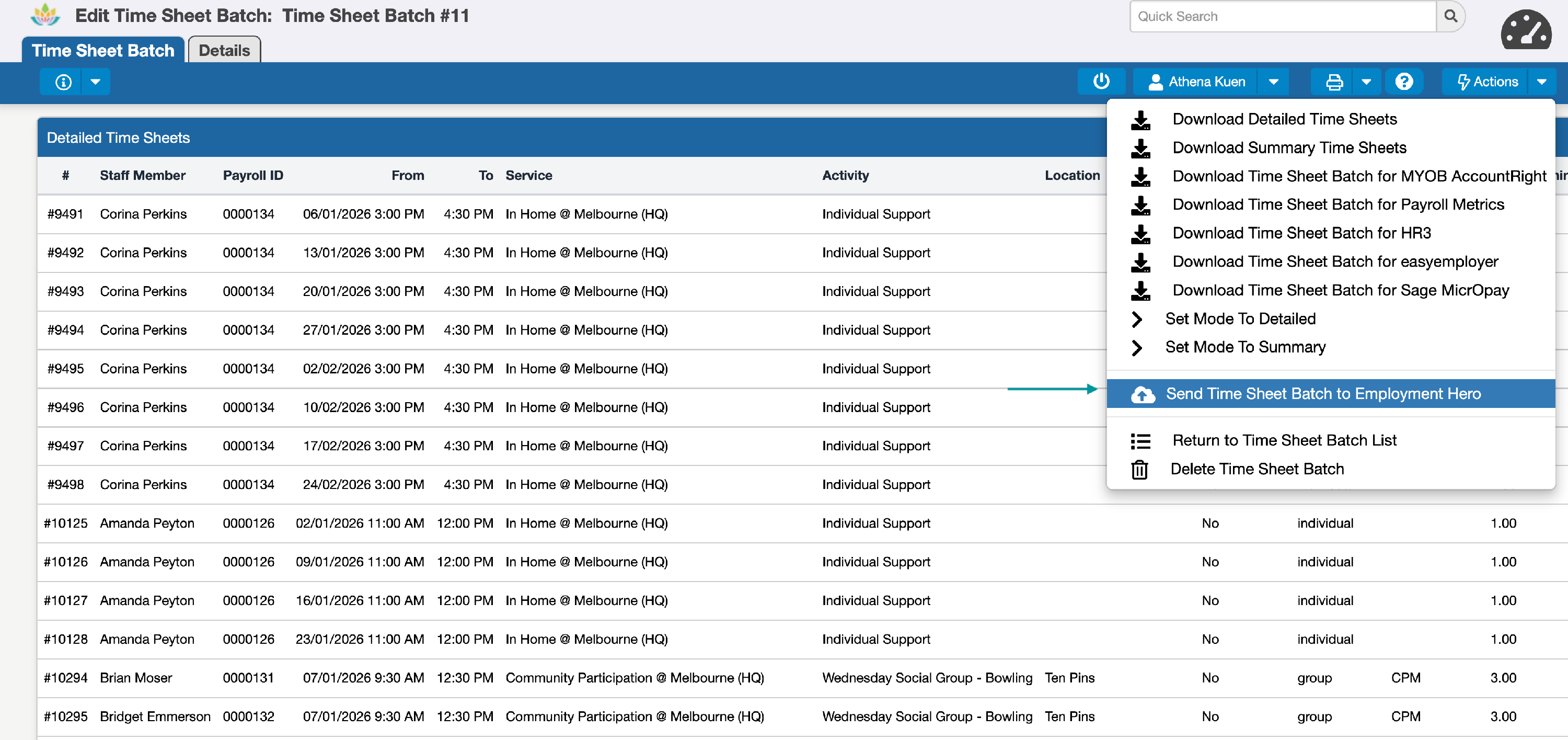
N.B. If you cannot see this option or the 'Details' tab, some required configuration has been missed. Please re-review the above.
Once 'Confirm' is selected, SupportAbility will send the Timesheets included in the batch as separate Timesheet Entries to Employment Hero via the API in small sequential batches:

This process runs in the background:
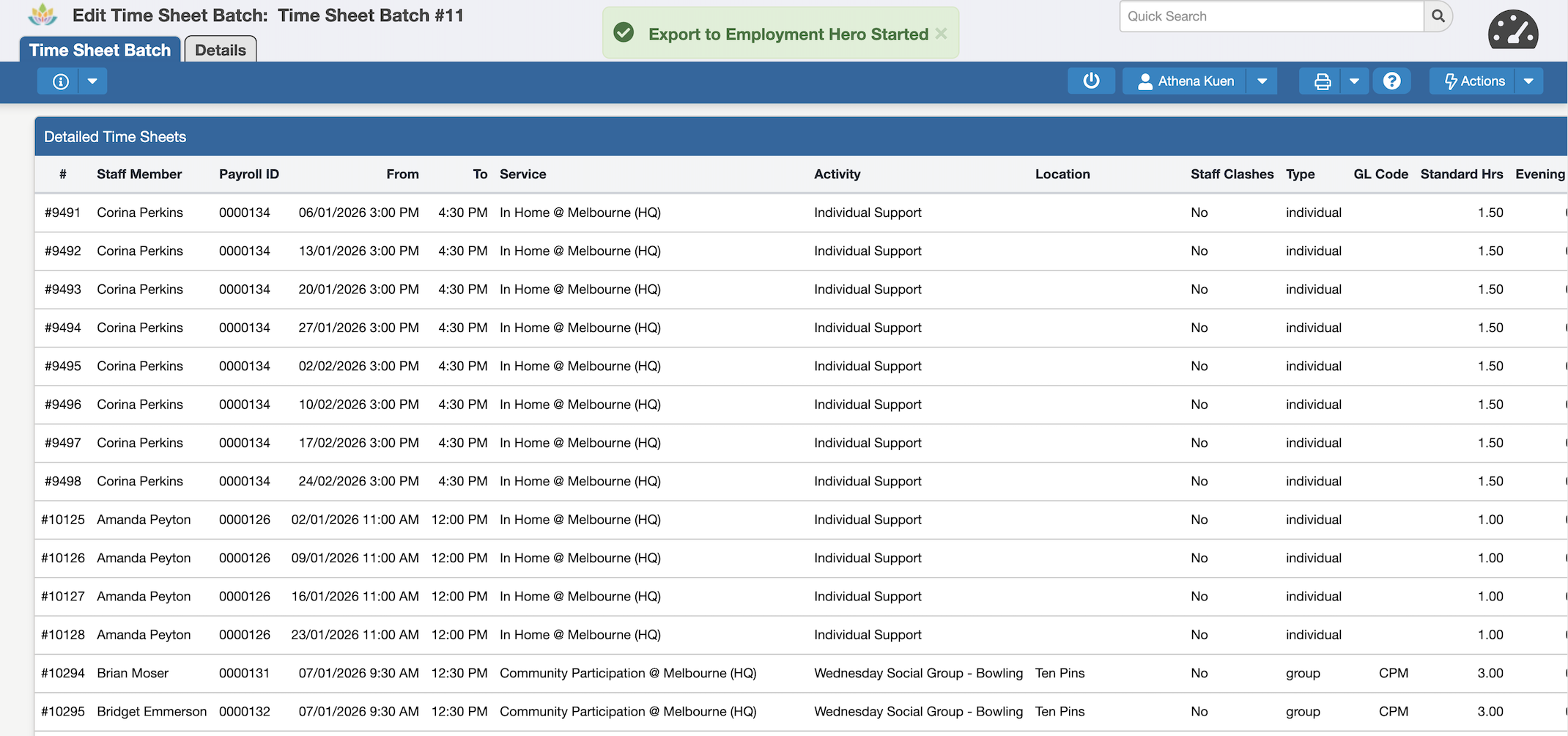
The Time Sheet Batch Details tab updates live as the batch is sent, showing whether it is in progress, complete, or has halted, so you do not need to refresh the page:
If the send halts partway through (for example, an authentication issue or a sustained Employment Hero outage), the banner will reflect this rather than reporting success, and the Details tab will summarise which shifts succeeded, failed, or were not attempted.
Data sent to Employment Hero
The following data is included when sending each shift to Employment Hero via the API:
| Employment Hero Field | SupportAbility Source | Notes |
|---|---|---|
| Employee ID | Payroll System Identifier (Staff record, Human Resources tab) | Must match the employee's ID in Employment Hero |
| Shift Date | Finalised From Date/Time | The date portion of the finalised shift start time |
| Start Time | Finalised From Date/Time | Relative to the shift date; formatted with seconds |
| End Time | Finalised To Date/Time | Relative to the shift date; formatted with seconds |
| Comment | Activity Description | The description of the related Activity |
| Location ID | Payroll Location ID (from Site or Program, per configuration) | Only included if Payroll Location ID mapping is configured in System Preferences. If no value is found, omitted (uses employee default)
|
| Work Types
|
Integrated System ID of the Work Type assigned to the Shift ( not the External ID) | Sent per timesheet entry. An Hours-based Work Type is carried on the base entry; each Allowance or Kilometres Work Type is sent as its own additional entry (0 hours; units = 1 for Allowance, total Private kilometres for Kilometres). Only included where a Work Type is assigned and has an Integrated System ID configured. |
Step 4: Reviewing the results
After sending a Time Sheet Batch to Employment Hero, the results are displayed in a new 'Time Sheet Batch Details' tab within the Edit Time Sheet Batch record:
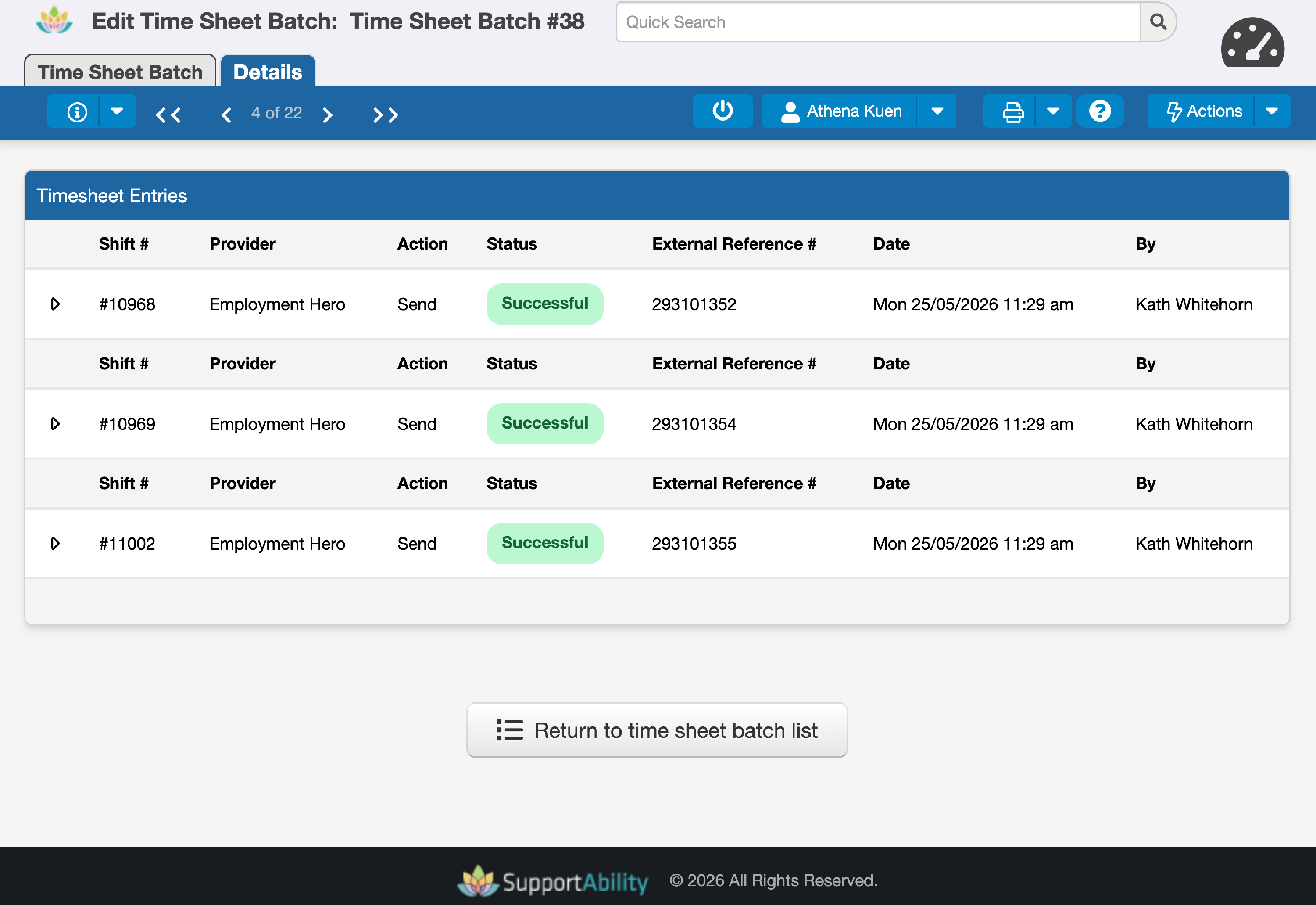
Time Sheet Batch Details tab
This tab provides a record of the submission, including:
- The date and time the batch was sent to Employment Hero
- Who initiated the send
- The status of each Timesheet Entry (e.g. success or error)
- The Employment Hero Timesheet Entry ID for each successfully created entry, providing evidence of creation
Successful submissions
When a Time Sheet Batch is successfully sent, each shift in the batch will display the corresponding Employment Hero Timesheet Entry ID in the Batch Details tab.
Errors and troubleshooting
If errors occur during the submission, they will be displayed in the Time Sheet Batch Details tab with as much detail as possible to help you resolve the issue.
Important behaviours to be aware of:
- All-or-nothing validation: Employment Hero's API validates the entire request. If any validation error is detected, the entire request will fail, and no Timesheet Entries will be created. You will need to resolve the issue and resend the batch.
- Duplicate/clash detection: If a Timesheet Entry already exists in Employment Hero for the same employee and time period, the duplicate entry will be rejected. The first submission is accepted; subsequent submissions for the same period will fail.
- Rate limiting: Employment Hero enforces API rate limits (20 requests per second, 100 requests per minute). SupportAbility manages this automatically with built-in retry logic, sending in small sequential batches. If Employment Hero is rate-limited or temporarily unavailable for a sustained period, the send will halt, and the status banner will show this, rather than reporting a false success. You can resend once the issue clears.
- Missing Payroll System Identifier: SupportAbility checks every Staff member in the batch for a Payroll System Identifier before sending. If any are missing, you will be alerted, and the send will not proceed for those shifts. Populate the field in the Human Resources tab of the affected Staff record, then resend.
- Missing LocationID: If LocationID mapping is configured but the relevant Site or Program does not have a Payroll Location ID value, a warning will appear for those shifts. The shifts will still be sent, but without a
locationId(Employment Hero will use the employee's default location).
Common errors and their resolution:
| Error | Likely Cause | Resolution |
|---|---|---|
| Invalid Employee ID | The Payroll System Identifier in the Staff record does not match an employee in Employment Hero | Verify the Staff member's Payroll System Identifier matches their Employment Hero Employee ID |
| Timesheet clash/duplicate | A Timesheet Entry already exists in Employment Hero for this employee and time period | Check Employment Hero for existing entries. If the previous submission needs to be replaced, delete the entries in Employment Hero first, then delete and recreate the batch in SupportAbility before resending |
| Authentication error | The user's API Token is invalid or has expired | Generate a new API Key in Employment Hero and update the API Token in My Staff Account in SupportAbility |
| Rate limit exceeded | Too many requests sent in a short period | Wait a few minutes and try again. SupportAbility handles retry logic automatically, but very large batches may occasionally encounter this
|
Deleting a Time Sheet Batch after sending
If you need to delete a Time Sheet Batch that has already been sent to Employment Hero, be aware of the following:
- Deleting the Time Sheet Batch in SupportAbility will clear the Employment Hero associations for those shifts. This means the link between SupportAbility shifts and Employment Hero Timesheet Entry IDs will be removed.
- Deleting a batch in SupportAbility will not delete the corresponding Timesheet Entries in Employment Hero. If you need to remove those entries, they must be deleted directly in Employment Hero.
- If you recreate the batch (e.g., to correct an error and resend it), the shifts will be treated as new submissions. If the original entries still exist in Employment Hero, the resend will fail due to duplicate/clash detection.
Frequently Asked Questions
What happens if only some shifts in a batch have errors?
Employment Hero validates the entire request. If any shift fails validation, the entire batch will be rejected, and no entries will be created. In such a case, it would be best to resolve the issue for the affected shifts and resend the full batch.
Does this integration send break data?
Break data is not included in this initial release of the integration. This may be added in a future update and optional feature set.
Can other users see my API Token?
No. API Tokens are encrypted at rest and are specific to each user account in My Staff Account. Other users cannot view your token.
What if a Staff member works across multiple Employment Hero locations?
If LocationID mapping is configured, the location is determined per shift based on the Activity's Site or Program. Different Activities can be resolved to different locations, allowing accurate cost attribution across multiple locations.
Does SupportAbility support other payroll systems via API?
The Employment Hero integration described in this article is a push-based integration, where SupportAbility sends timesheet data directly to Employment Hero via its API. It is built specifically for the Employment Hero ecosystem.
For providers using other payroll systems (such as MYOB, Xero, or others), SupportAbility has Open API access on the product roadmap. Rather than building dedicated integrations with individual payroll packages in future, the Open API will provide a standardised endpoint that allows any authorised external system to connect to SupportAbility and retrieve timesheet data directly. This is a pull-based approach, meaning your payroll provider (or a middleware tool) would call the SupportAbility API to pull the data they need.
This means the Open API approach is payroll-agnostic by design. Whether your organisation uses MYOB, Xero, or another payroll system, the path forward is for that system to integrate with SupportAbility's API on their end.
In the meantime, SupportAbility continues to support .csv-based exports for other payroll systems. More information is available in the Payroll Integration article.